L'applet sensors-applet permet d'afficher la température des différents capteurs présents dans votre machine.

Sa mise en oeuvre n'est toutefois pas évidente, voici comment faire :
Le service lm_sensors
Avant toute chose, il faut s'assurer que le service lm_sensors est bien présent sur la machine et démarré.
Pour cela, on ouvre un terminal en mode administrateur (root) et on tape la commande suivante :


# chkconfig --list lm_sensorslm_sensors 0:arrêt 1:arrêt 2:arrêt 3:arrêt 4:arrêt 5:arrêt 6:arrêt# yum install lm_sensorsOn peut le faire avec l'interface graphique system-config-services, mais également en ligne de commande, comme ci-dessous :
# chkconfig --level 5 lm_sensors on# chkconfig --list lm_sensors
lm_sensors 0:arrêt 1:arrêt 2:arrêt 3:arrêt 4:arrêt 5:marche 6:arrêt# service lm_sensors startLa détection des sondes
Le service lm_sensors doit être configuré afin de remonter les informations de tous les capteurs disponibles sur la machine.
# sensors-detect# sensors-detect revision 4966 (2007-10-20 01:41:53 -0700)
This program will help you determine which kernel modules you need
to load to use lm_sensors most effectively. It is generally safe
and recommended to accept the default answers to all questions,
unless you know what you're doing.
We can start with probing for (PCI) I2C or SMBus adapters.
Do you want to probe now? (YES/no):
Probing for PCI bus adapters...
Use driver `i2c-piix4' for device 0000:00:07.0: Intel 82371AB PIIX4 ACPI
We will now try to load each adapter module in turn.
Module `i2c-piix4' already loaded.
If you have undetectable or unsupported adapters, you can have them
scanned by manually loading the modules before running this script.
To continue, we need module `i2c-dev' to be loaded.
Do you want to load `i2c-dev' now? (YES/no):
Module loaded successfully.
We are now going to do the I2C/SMBus adapter probings. Some chips
maybe double detected; we choose the one with the highest confidence
value in that case.
If you found that the adapter hung after probing a certain address,
you can specify that address to remain unprobed.
Some chips are also accessible through the ISA I/O ports.
We have towrite to arbitrary I/O ports to probe them.
This is usually safe though.
Yes, you do have ISA I/O ports even if you do not have any ISA slots!
Do you want to scan the ISA I/O ports? (YES/no):
Probing for `National Semiconductor LM78' at 0x290... No
Probing for `National Semiconductor LM78-J' at 0x290... No
Probing for `National Semiconductor LM79' at 0x290... No
Probing for `Winbond W83781D' at 0x290... No
Probing for `Winbond W83782D' at 0x290... No
Probing for `Silicon Integrated Systems SIS5595'... No
Probing for `VIA VT82C686 Integrated Sensors'... No
Probing for `VIA VT8231 Integrated Sensors'... No
Probing for `IPMI BMC KCS' at 0xca0... No
Probing for `IPMI BMC SMIC' at 0xca8... No
Some Super I/O chips may also contain sensors.
We have to write tostandard I/O ports to probe them.
This is usually safe.
Do you want to scan for Super I/O sensors? (YES/no):
Probing for Super-I/O at 0x2e/0x2f
Trying family `National Semiconductor'... No
Trying family `SMSC'... No
Trying family `VIA/Winbond/Fintek'... No
Trying family `ITE'... No
Probing for Super-I/O at 0x4e/0x4f
Trying family `National Semiconductor'... No
Trying family `SMSC'... No
Trying family `VIA/Winbond/Fintek'... No
Trying family `ITE'... No
Some CPUs or memory controllers may also contain embedded sensors.
Do you want to scan for them? (YES/no):
AMD K8 thermal sensors... No
AMD K10 thermal sensors... No
Intel Core family thermal sensor... No
Intel AMB FB-DIMM thermal sensor... No
Sorry, no sensors were detected.
Either your sensors are not supported, or they are connected to an
I2C or SMBus adapter that is not supported.
See doc/FAQ,doc/lm_sensors-FAQ.html or
http://www.lm-sensors.org/wiki/FAQ(FAQ #4.24.3)
for further information. If you find out what chips are on your board,
checkhttp://www.lm-sensors.org/wiki/Devices for driver status.gnome-applet-sensors
Maintenant il faut installer l'applet pour le tabeau de bord de Gnome
# yum install gnome-applet-sensors
Ajout de l'applet au tableau de bord
Un petit clique-droit à l'emplacement souhaité :
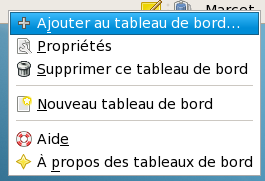
Puis on sélectionne l'applet Moniteur matériel

Configuration de l'applet
Le dialogue ci-dessous montre les capteurs qui ont été trouvés sur le système.
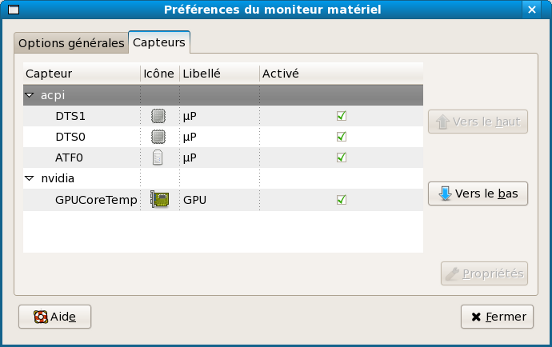
Vous pouvez activer les capteurs que vous souhaitez surveiller et paramétrer leur icône et les seuils d'alerte température en cliquant sur le bouton Propriétés